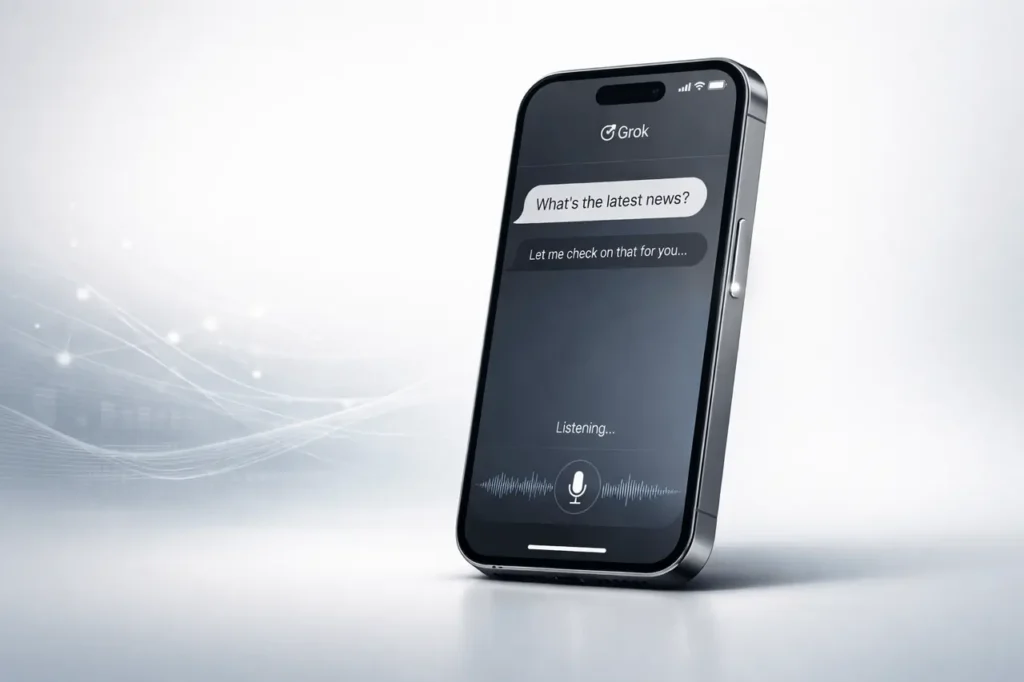
Its Grok iPhone Action Button configuration lets you turn Grok into your standard voice assistant, with access to live web searches. Instead of having to rely on Apple’s default voice assistant, users can hit and hold the Action Button to open Grok and get live, current, accurate results powered by web searches.
This setting is especially beneficial for those who need rapid, dynamic responses that the traditional voice assistants offer. Here is a comprehensive guide to the basics of Grok, including what it is, why it is crucial, and how to set it up.
What Is Grok?
Grok is an AI assistant developed by xAI. It was designed to provide chat-based responses and conduct real-time web searches while answering questions. In contrast to conventional assistants that heavily rely on predefined data sources, Grok can get up-to-date data from the web.
Key capabilities include:
- Real-time information retrieval
- Vocal-based interactions
- Context-aware responses
- Automatic web search integration
When properly configured, the iPhone can immediately launch Grok using the device’s action Button.
What is the Grok iPhone Action Button?
iPhone 15 Pro and newer Pro models come with a custom Action Button. Instead of being restricted to silent mode, the button can activate shortcuts, accessibility features, or third-party applications.
Users may assign:
- Camera
- Flashlight
- Voice memos
- Shortcuts
- Custom app actions
When you assign a Grok shortcut, you can turn your Action Button into a dedicated AI launcher assistant.
Why Use Grok Instead of Siri?
Siri is Apple’s primary assistant. Although it offers deep integration with iOS, it has been limited in real-time web page retrieval and dynamic chat capabilities.
Feature Comparison Table
| Feature | Grok | Siri |
|---|---|---|
| Real-time web search | Yes | Limited |
| Conversational depth | Advanced AI model | Basic assistant |
| Third-party activation via Action Button | Yes | Default |
| Contextual responses | Strong | Moderate |
| Continuous updates via web | Yes | Not fully dynamic |
Grok’s ability to automate web searches gives it an advantage for users who need recent news, current topics, or quick facts.
How to Set Grok as Your iPhone Assistant Using the Action Button?
Take care to follow these steps:
Step-by-Step Setup
- Open Settings
- Tap Action Button
- Swipe until you see Shortcut
- Tap to select an option to create a shortcut
- Search for “Grok”
- Select “Talk to Grok”
Once configured:
- Hold and press the Action Button
- Grok starts instantly
- Speak your query
- Receive real-time answers
Check that your Grok app is running the latest version to ensure compatibility.
How the Grok iPhone Action Button Setup Works?
This configuration depends on the Apple Shortcuts integration. You can assign “Talk to Grok” to the Action Button:
- The button will trigger an already-defined shortcut
- The shortcut lets you open Grok in voice mode.
- Grok processes your request
- If required, it conducts live web searches
- The browser responds by providing up-to-date information
It gives you an almost instant AI assistant experience without the need to open applications manually.
Practical Use Cases
This is where this configuration can be extremely effective:
Everyday Queries
- News updates
- Stock prices
- Sports scores
- Forecasts for the weather
Professional Use
- Quick market research
- Technical explanations
- Industry updates
- Fact verification during meetings
Learning & Research
- Definitions
- Historical context
- Concept explanations
- Comparisons between technologies
The ability to retrieve live data makes Grok extremely useful for users who need real-time information rather than static data.
Benefits of Using Grok as Your Default Voice Assistant
1. Real-Time Web Search
You get up-to-date answers instead of outdated summaries.
2. Faster Workflow
It is not necessary to open an internet browser or manually search.
3. Improved Contextual Responses
AI-driven conversation lets you follow up with questions to be answered naturally.
4. Customisation Flexibility
This Action Button lets you bypass the limitations of the default assistant.
Limitations and Considerations
While the configuration is extremely effective, there are some practical considerations:
- Only available on compatible iPhone models that have an Action Button
- It requires the Grok app to be installed and regularly updated.
- Requires internet connectivity to perform web-based search results
- May not replace system-level Siri commands (like device settings control)
Users who heavily rely on system automation may need Siri to perform certain device-level functions.
Technical Comparison: Traditional Assistant vs AI Web-Enabled Assistant
| Capability | Traditional Voice Assistant | AI Web-Enabled Assistant (Grok) |
|---|---|---|
| Static knowledge base | Yes | No |
| Live internet retrieval | Limited | Yes |
| Context retention | Basic | Advanced |
| Conversational AI | Moderate | High |
| Instant hardware trigger | Limited | Yes (via Action Button) |
This change is the transition of static voice assistants to AI-powered connected assistants via the web.
Best Practices for Using Grok on iPhone
To maximise performance:
- Make sure to keep the Grok app up-to-date
- Ensure stable internet connectivity
- Use clear voice prompts
- Use with the other shortcuts to create advanced workflows
- Try different queries to discover capabilities
For advanced users, combining Grok with shortcuts for automation can increase productivity.
My Final Thoughts
A Grok iPhone Action Button configuration transforms your iPhone into an incredibly active AI-powered assistant. By adding “Talk to Grok” to the Action Button, users will gain instant access to a live, web-based search-and-chat AI and up-to-date responses, without having to open a browser.
Although it can’t fully replace the system-level assistant functions, Grok significantly expands what the iPhone can do through voice. As AI assistants continue to evolve, the integration of tools like Grok into your everyday workflows indicates an overall shift towards real-time, internet-connected technology on mobile devices.
For those looking for more efficient, faster and more up-to-date voice response, installing Grok using an Action Button is a practical and exciting upgrade.
FAQs
1. Can I substitute Siri completely using Grok on the iPhone?
No. Siri remains the primary system-level voice assistant. But you can also use Grok’s Action Button to launch Grok instantly for all your questions.
2. Which iPhones support the Grok Action Button setup?
It is the only iPhone model with a custom Action Button, such as the iPhone 15 Pro and later compatible models.
3. Do you think Grok have to be connected online?
Yes. Real-time search results depend on an internet connection.
4. What makes Grok different in comparison to Siri?
Grok is a conversational AI tool that provides responses and live web search capabilities, whereas Siri focuses more on system integration and predefined answers.
5. Do I need to pay for a subscription to utilise Grok?
Access and availability tiers are contingent upon accessibility tiers, and availability depends upon the Grok app’s current offer. Open the app to find the most up-to-date plan details.
6. Can I continue to make use of Siri after I have set up Grok?
Yes. Siri is still accessible via traditional activation methods.
Also Read –